
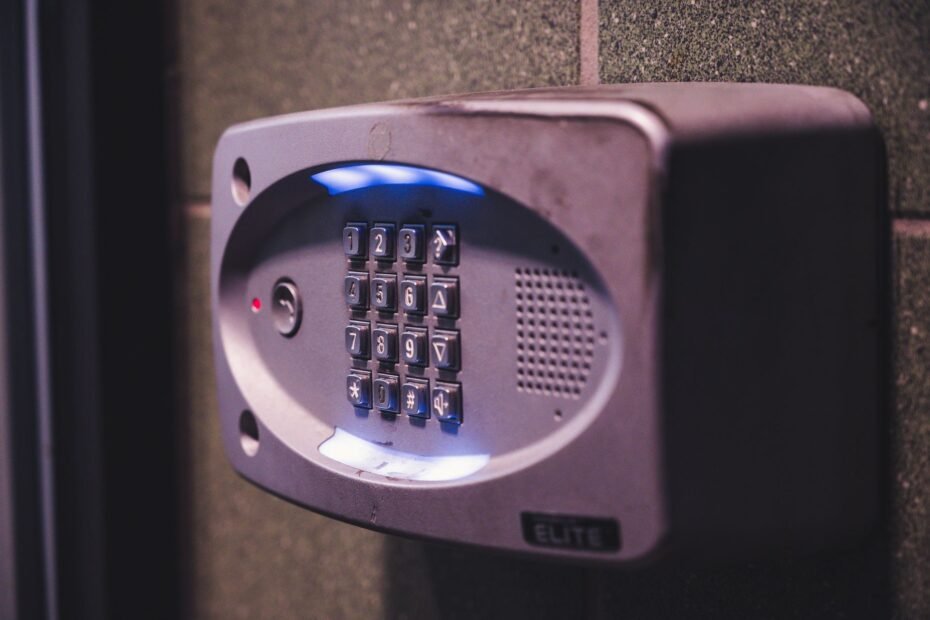
A dark button, offline status, silent chime, or missing video can point to a power, Wi-Fi, app, or feature fault. Your fastest path is matching the visible symptom to its likely source before removing settings or touching wiring.
This practical walkthrough suits homeowners who need to sort out batteries, low-voltage wiring, router settings, app controls, resets, and electrical stop signs without random trial and error.
Symptom Mapping Limits Unneeded Resets
A lit button does not prove every part of the doorbell is healthy. Your unit can have enough power for a status light yet lack steady voltage or a strong Wi-Fi connection for live video, motion alerts, recordings, or wired chime control.
| Visible symptom | Likely source | Useful clue |
|---|---|---|
| No light or response | Battery, wiring, transformer, breaker | The button stays dark after charging or pressing it. |
| Offline in the app | Router outage, weak Wi-Fi, changed network details | Your phone works online indoors, but the doorbell drops near the porch. |
| No indoor chime | Chime setting, chime kit, incompatible mechanical chime | Phone alerts arrive, yet the indoor bell stays silent. |
| Missing alerts | Mobile app permissions, schedules, motion zones | Video appears in history, but your phone never alerts you. |
| No recordings | Motion controls, privacy settings, recording access | Live view works, but motion events do not appear. |
| Slow live view or audio | Weak signal, phone connection, microphone permissions | Video loads after 10 seconds or voices cut in and out. |
Visible clues narrow the fault
Check the status light, battery percentage, app error text, and router connection before changing settings. A smart doorbell offline after a router password change points toward Wi-Fi setup, while a unit that restarts every few minutes points toward unstable power.
Cold weather supplies another clear clue. A battery-powered Ring Video Doorbell or Google Nest Doorbell can show low battery sooner in freezing conditions because cold cells release less available power, even though the battery looked healthy indoors.
Repeated restarts, a brief online period, or failures limited to cold mornings are useful evidence. Use those patterns to narrow the fault before moving to a factory reset.
Power Checks Cover Batteries and Low-Voltage Supply
Repeated restarts point back to the power source. A depleted battery or weak wired feed can leave your camera awake long enough to flash a light, then push it offline as video, audio, or chime activity raises power demand.
Battery condition affects daily operation
Remove the battery on models built for removal, charge it with the maker’s cable, and seat it firmly again. Your smart doorbell app should show a stable percentage after several minutes instead of a sudden drop linked to a loose contact or worn battery.
- Check cold exposure Cold air shortens battery run time and can slow charging at the door.
- Inspect contacts Dry debris or corrosion on metal contacts can interrupt charging.
- Review event volume Hundreds of motion events each day drain a battery faster than a quiet entryway.
- Watch charge behavior A battery that falls sharply within hours needs maker support or replacement.
Battery power matters most on a busy entry path. Your doorbell uses energy for motion detection, video capture, Wi-Fi communication, speaker output, and status lights, so a frequent stream of driveway activity can shorten the time between charges.
Transformer ratings affect wired reliability
Wired units use a doorbell transformer that changes household voltage into low-voltage power for the chime circuit. Insufficient voltage or VA capacity can produce a smart doorbell no power symptom, unreliable charging, failed ringing, or random reboots.
Find the transformer near the electrical panel, furnace, utility area, chime, or junction box. Its label lists output in volts and VA, such as 16V 30VA. Compare both figures with your model’s installation requirements because a 16V transformer with too little VA can struggle under load.
Intermittent power has a recognizable pattern. Your doorbell may light up, restart during live view, fail to ring the wired doorbell chime, or lose charge despite having wires attached. Those signs point to a supply problem rather than a simple app setting.
After the supply is ruled out, a doorbell that remains unreachable is more likely dealing with its network connection.
Stop before opening an electrical panel, touching unknown conductors, or replacing a transformer. Your safe limit is reading an accessible label and checking a known doorbell circuit breaker; panel work belongs to a qualified electrician.
Network Stability Restores Offline Doorbells
Steady power narrows an offline fault to the route between the camera and router. Weak Wi-Fi signal strength near an exterior wall can delay alerts, stall live view, and make a healthy unit appear defective.
Router status comes before Wi-Fi reconnection
Confirm that another device reaches the internet through your home Wi-Fi connection. Restart the router, wait for its normal connection lights, then use the maker’s reboot process for the doorbell. Repeated resets during a router outage erase saved details without restoring service.
Brick, stucco mesh, metal storm doors, and insulated exterior walls weaken radio signals. For example, a router in a rear upstairs office can reach your phone in the driveway but still leave the front-door camera with unstable video after the signal crosses several dense surfaces.
Your placement test can reveal that difference. Stand beside the doorbell with your phone on the same home Wi-Fi network, then compare signal strength with a spot inside near the router. A large drop near the entrance points to interference or distance.
Band and security settings control setup
Some doorbells use only 2.4 GHz Wi-Fi, while others work with 2.4 GHz and 5 GHz Wi-Fi bands. Your Eufy Security, Arlo Video Doorbell, Ring, or Nest model needs the band listed in its setup instructions, not simply the strongest band shown by the router.
Changed network names, passwords, or router security settings can break the saved connection. A video doorbell not connecting to Wi-Fi after a new router needs reconnection through its smart doorbell app. Keep your phone near the doorbell during setup so both devices have a stronger signal path.
Some router settings block setup without blocking ordinary phone browsing. Guest networks, device isolation, and security modes that reject older Wi-Fi standards can stop the doorbell from joining the network. Your router settings should allow the model’s listed Wi-Fi band and security method.
A successful connection only proves the doorbell is online; alerts, video, and audio can still fail independently.
Connected Doorbells Still Have Feature-Level Faults
An online camera can still fail at a single task. Once live video loads in the app, focus on the missing feature rather than changing a Wi-Fi connection that already works.
Indoor chimes use a separate path
A doorbell camera not ringing indoors can still send phone alerts. Check the in-app chime setting, then check whether your wired doorbell chime appears on the compatibility list and whether its chime kit is fitted as required.
Google Home, Apple HomeKit, and similar connected-home systems can announce a button press through speakers. Those announcements do not show that the mechanical chime circuit is active. Your phone alert, smart-speaker announcement, and indoor bell are separate outputs.
Chime trouble also appears after a wiring change. A compatible transformer can still leave the indoor bell silent where the chime kit is missing, the app chime control is off, or the installed mechanical chime does not work with that doorbell model.
Motion and recordings depend on camera conditions
Motion detection needs a clear view, useful lighting, and a zone covering the approach path. Clean the lens with a soft dry cloth, trim plant growth blocking the lower frame, and review privacy masks or schedules that stop event capture.
- Set useful zones Aim zones at the walkway instead of a busy street or moving tree.
- Adjust sensitivity Raise sensitivity for missed approach events, then lower it after false triggers.
- Check recording access Some models need a recording subscription or local storage before clips appear.
- Review schedules A sleep schedule can silence motion alerts during selected hours.
- Clean the lens Rain spots and spiderwebs can blur faces and confuse motion detection.
A video doorbell not recording can still show live view because those functions use separate app controls. Walk through the motion zone, then review event history, recording access, privacy controls, and schedules before changing hardware.
Live video and audio reveal weak links
Delayed live view points to a weak connection at either end. Check your phone on cellular data and home Wi-Fi, then grant camera, microphone, notification, and local-network permissions where your phone requests them.
Two-way audio needs clear speaker and microphone paths. Remove protective film from a new unit, clear dirt from the grille, turn up phone volume, and check microphone access in the app before treating muffled conversation as a hardware fault.
When permissions, volume, and physical obstructions are ruled out, preserving configuration makes a reset a later option.
Reset Escalation Preserves Your Settings
Feature-level checks preserve the settings you already chose. Start with the smallest action that fits the fault because a factory reset removes saved network details, motion zones, linked chimes, and notification choices.
Reboots and updates come before removal
- Reboot the doorbell Use the maker’s reboot process, then allow several minutes for the device to reconnect.
- Update the app Install the latest mobile app version to address phone compatibility and notification bugs.
- Run firmware updates Keep the doorbell powered and online while firmware updates finish.
- Reconnect Wi-Fi Enter the active network name and password after router service is stable.
- Remove and re-add Use this step after normal reconnection fails or setup access does not return.
- Factory reset last Reset after documenting your settings and checking the maker’s exact button sequence.
How to reset a smart doorbell depends on the model, so use the button location and hold time in the product instructions. A factory reset cannot repair a weak transformer, flat battery, damaged wire, or router without internet service.
Firmware updates belong before the final reset because they can address device behavior while leaving your existing setup in place. Your doorbell needs steady power and a stable Wi-Fi connection during that process, since an interrupted update can leave setup incomplete.
Electrical Stop Signs Call for Professional Help
A dark unit after a confirmed charge or compatible wired supply has moved beyond routine setup. Hardware concerns include heat at the button, water intrusion, a cracked lens, swollen battery housing, or a status light that never changes during a proper reboot.
Panel work stays outside doorbell troubleshooting
Call an electrician for damaged insulation, unknown wire routing, transformer replacement, hot components, breaker trips, or work involving the electrical panel. Your doorbell wiring is low voltage at the button, but the transformer connects to household power.
Contact the maker’s help channel after your device stays offline across a working network, fails with a known-good battery, or ignores documented setup steps. Ring, Nest, Arlo, and Eufy use model-specific light patterns that can narrow a hardware diagnosis.
Clear notes speed up diagnosis
Write down the status-light color, battery percentage, transformer label, app error, router band, and steps already completed. Your notes turn smart doorbell not working into a clear fault record and reduce repeated reset attempts.
Photos can help with physical details. Capture the transformer label from a safe accessible location, the doorbell’s status light, visible water damage, and the app error screen. Keep panel covers closed while gathering those details.
Final Thoughts
The visible symptom should choose your next step. A dark button points to power, an offline screen points to the network, and a connected camera with missing alerts points to app controls or motion settings.
Work through that chain in order. Your safest progress comes from battery and Wi-Fi checks before resets, while transformer replacement and electrical-panel work stay with an electrician.
FAQ
Why is my smart doorbell not turning on or showing any lights?
Your doorbell may have a flat battery, loose contacts, damaged wiring, a tripped doorbell circuit breaker, or inadequate transformer output. Charge and reseat a removable battery, check an accessible breaker, and read the transformer label before seeking electrical help.
Why is my smart doorbell offline?
Lost internet service, changed Wi-Fi credentials, or a weak signal at the front door can cause the device to show offline. Check another home device online, restart the router, and reconnect the doorbell after network service returns.
How do I know whether my doorbell transformer provides enough voltage?
Find the accessible transformer label near the chime, furnace, utility area, junction box, or panel. Read both the voltage and VA rating, such as 16V 30VA, then compare both numbers with the voltage requirements listed for your specific doorbell model.
Why is my smart doorbell not sending motion alerts or notifications?
Your camera can record video while alerts stay silent because phone permissions, notification controls, schedules, privacy settings, or motion zones block notifications. Check phone notification permission, then review alert schedules and motion settings inside the smart doorbell app.
Why does the doorbell work in the app but not ring my indoor chime?
Your device can send app alerts while the wired doorbell chime stays silent because chime settings, a required chime kit, or chime compatibility affect that separate circuit. Check the in-app chime control and confirm that your installed chime matches the model requirements.
How do I reconnect a smart doorbell to Wi-Fi?
Start after another home device confirms that router internet service works. Open the smart doorbell app, select the Wi-Fi setup path for your model, enter the active network details, and stay near the doorbell until setup finishes.